Remove your webcam background in OBS, entirely on your own machine
Remove, blur or replace your webcam background with no green screen. It runs entirely on your PC: no cloud, no telemetry, no account, and your frames never leave the machine.
Windows installer, Linux .deb and .tar.gz, macOS bundle. Free, GPL-2.0-or-later.
price free, licence gpl-2.0-or-later, account none, telemetry none.




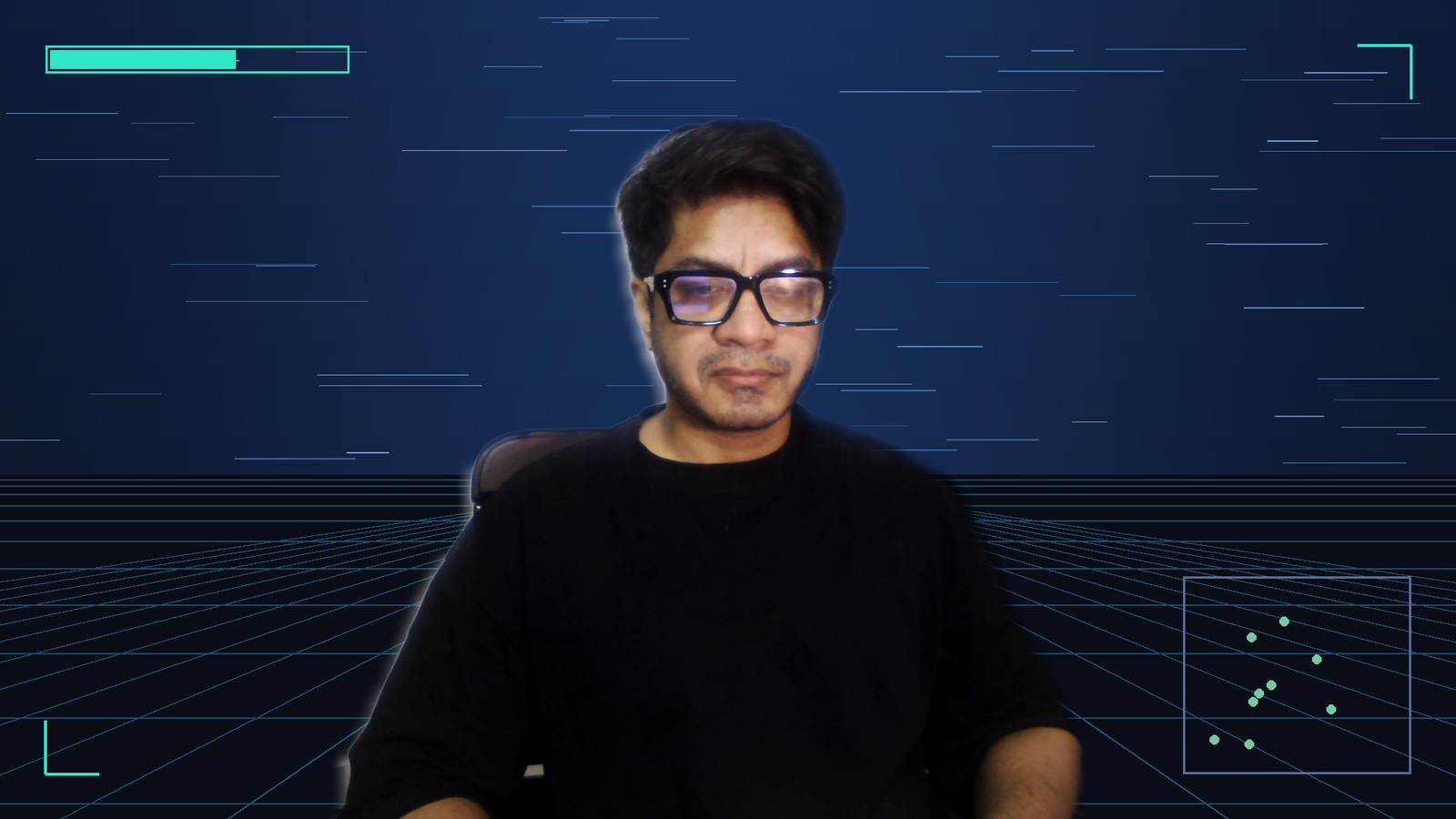
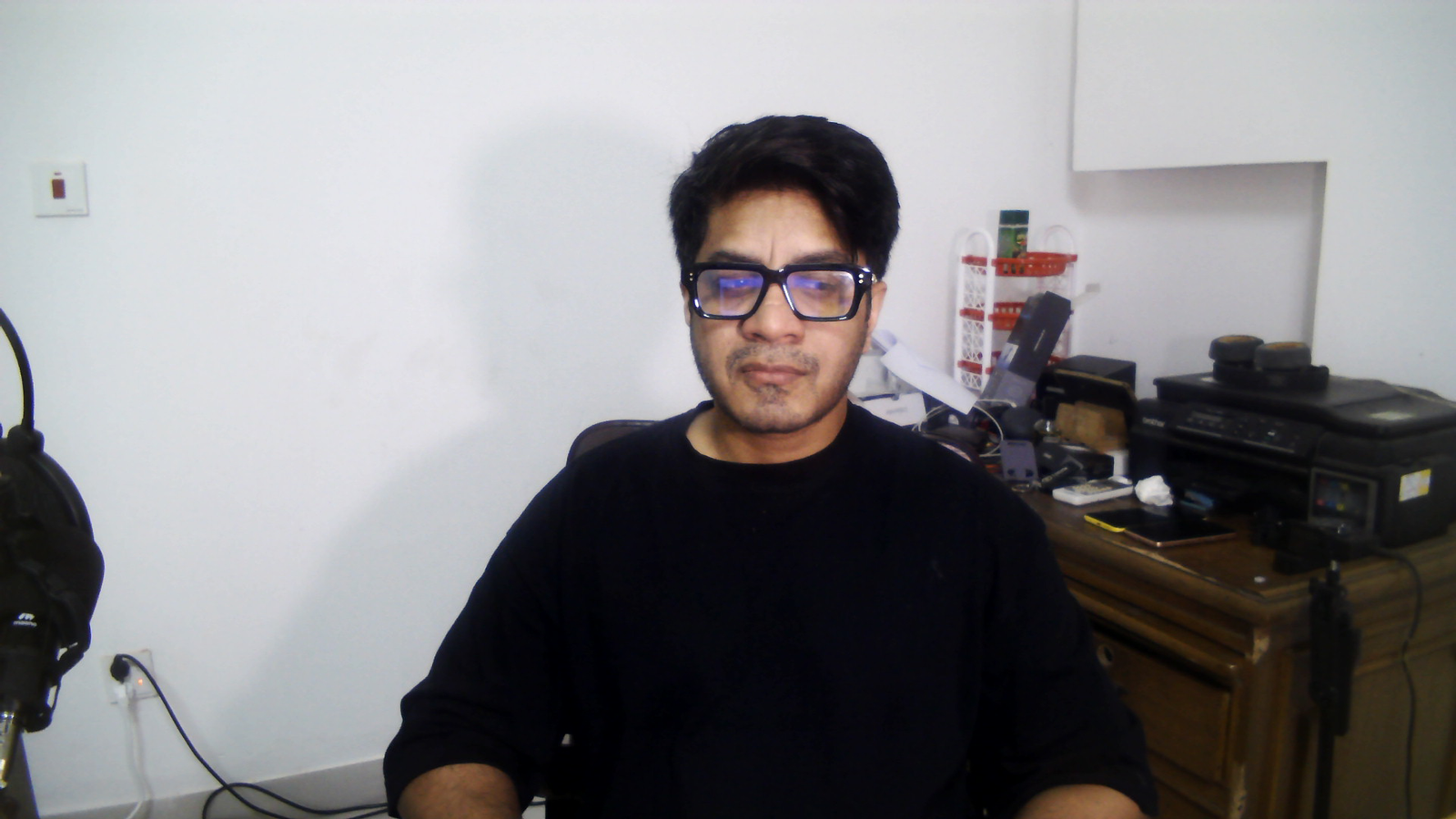
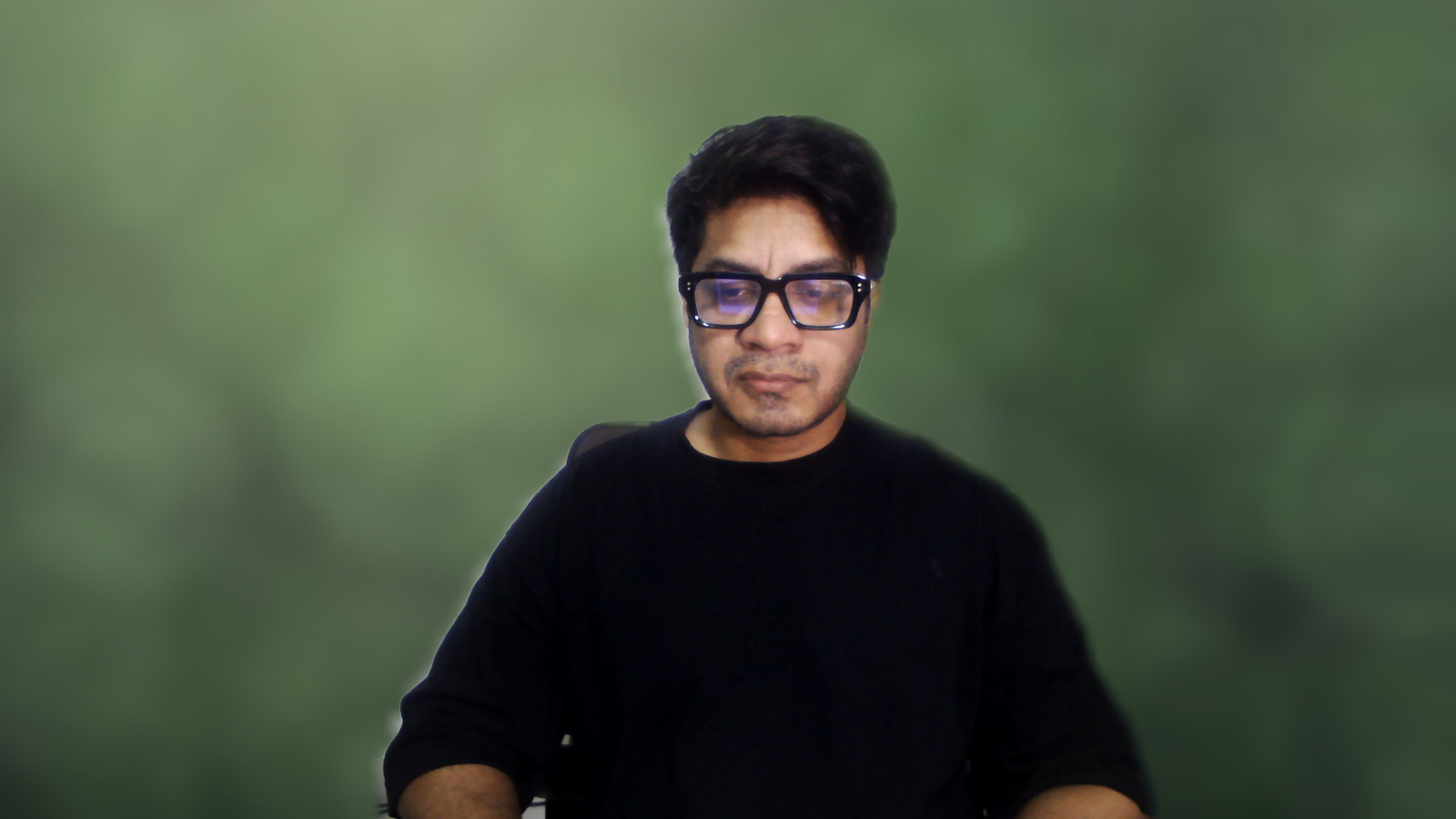
The same frame, filter off and on
What it does
ProMatte is a filter you add to your camera source in OBS. Once it is there you choose what happens behind you: remove the background so your game or your slides show through, blur it, replace it with a colour, an image, a video or another OBS source, or simply dim it.
Leave Quality on Auto and it measures what your machine can actually do, picks a model that fits, and remembers the answer for next time. There is nothing to configure to get started.
Seven things you can do with the background
- Remove (transparent)Cuts you out. Whatever sits below the camera in the scene shows through.Your game, your slides, or any other OBS source behind you.
- BlurKeeps your room and pushes it out of focus.The safest default. It is also the quickest way to prove the AI is working, because the effect is visible with nothing else in the scene.
- Replace with solid colorPuts a flat colour behind you.A clean plate, or a colour key for another tool downstream.
- Replace with imagePuts a photo behind you.The classic virtual background. Pair it with the Green Screen Replacement preset.
- Replace with videoPuts a looping video behind you.Animated backgrounds.
- DimKeeps your room and darkens it.Pushing a busy room back without the processing cost or the look of a blur.
- Replace with another OBS sourcePuts any other OBS source behind you, without rearranging the scene.A capture card, a browser source, a second camera.
Transparent is not a preview mode. It makes the background see-through, and you only notice that when there is something behind the camera to see. Alone in a scene it shows the canvas, which is black. Blur is the quickest way to confirm the AI is working at all.
Six presets, for six situations
- Webcam (balanced)The default. Leave it here unless something is wrong.Everyone, first run.
- Tutorial / Talking HeadFor someone sitting still and talking. Softer edges, steadier matte, more GPU.Course creators, webinar hosts, anyone recording to camera.
- Gaming Stream (low latency)Lowest latency. The matte keeps up when you move fast, at the cost of edge detail.Live streamers with the game behind them and headroom to protect.
- High QualityThe best edges the hardware will give you. On a weak GPU the controller quietly steps it down again.Recorded video on a machine with a real GPU.
- Low-End PCThe cheapest it goes. AI capped at 15 times a second so the rest of the machine keeps working.Old laptops, CPU-only machines, anything already at its limit.
- Green Screen ReplacementFor putting a picture behind you. Edge pulled in slightly and decontaminated hard so no colour fringe survives.Anyone replacing the background with an image or video.
Presets tune matte quality and speed only. None of them crop or zoom - to show just your head, add OBS' Crop/Pad filter or resize the source in the scene.
How it works, in plain language
A model looks at a shrunken copy of your camera frame and produces a matte: a per-pixel map of how much of you is at each point. That map is much smaller than your video, so scaling it back up is where the quality is won or lost.
The upscale is guided by the full-resolution image itself, which snaps the soft edge of the matte onto the real edge in the picture. Then the edge is cleaned up: feathered, decontaminated of colour that leaked in from your wall, and checked for the bright fringe people call a halo. That is why a model working at a low resolution can still give a usable edge at 1080p.
The model runs on a thread of its own. The render thread never waits for it: if a fresh matte is not ready, the previous one is reused for another frame. That is why OBS holds its frame rate even when the model is slower than the camera.
What it costs the render thread
render_fps_min 20.3,
render_ms_median 3.86,
render_ms_max 39.79 OBS statistics sampled at each of the 35 captures Measured on i7-7500U + GeForce 940MX, Windows 11. capture/out/manifest.json, capture run 2026-09-09
What to expect on your hardware
| Machine | What to expect | Measured? |
|---|---|---|
| 2017 laptop: i7-7500U, GeForce 940MX | CPU backend, PP-HumanSeg v2 Portrait, 256x144, for all six presets on a 2017 low-end laptop (i7-7500U + GeForce 940MX, Windows 11) | measured |
| RTX 3060 / RX 6600 or better | RVM Balanced to Quality at 30 AI FPS, render under 2 ms | estimate |
| GTX 1650 / Intel Arc / Apple M1 class | RVM Performance to Balanced at 25-30 AI FPS | estimate |
| Intel Iris Xe / AMD 680M | RVM Performance or PP-HumanSeg | estimate |
| Two-core laptop, CPU only | PP-HumanSeg lite or MediaPipe Selfie at 20-30 AI FPS | estimate |
The first row is the machine everything here was measured on. The rest are estimates from the model sizes, not measurements, and they are labelled that way because nobody has run this on that hardware.
What is actually verified, and where
| Platform | State | What that means |
|---|---|---|
| Windows x64 | Verified end to end | Verified end to end on Windows, on one 2017 laptop with a real webcam. Every measurement in this repo comes from that machine. |
| macOS, Apple Silicon | Runs, not benchmarked | On Apple Silicon, 1.0.2 loads in OBS 32.2.2 and removes the background, with OBS holding 30/30 fps at 23.6 % CPU. That is a confirmation from a screenshot, not an instrumented run, and there are no benchmark numbers for macOS. |
| macOS, Intel | Built, never executed | The Intel Mac slice is built and every load command in it resolves, but nobody has run it. Both the CI runner and the machine that confirmed Apple Silicon are Apple Silicon. |
| Linux x86_64 | Loads, never run in OBS | Linux builds, passes its unit tests, and produces a package whose module loads with every library resolving. It has never been run inside a real OBS against a camera. |
That grid is the whole truth about platform support. Windows is the only one measured end to end, and it was measured on one machine. If you are on Linux, the package installs and the module loads, and nobody has yet run it against a real camera in a real OBS. Reports from either are welcome.
It never leaves your machine
- Frames are processed in memory on your machine and are never uploaded, saved or transmitted.
- No telemetry, no analytics, no account, no licence key.
- The only outgoing request is a model download you start yourself, over HTTPS, checked against a pinned SHA-256.
- The five bundled models are Apache-2.0 or CC-BY-4.0. A model with a non-commercial licence was evaluated and excluded.
Compared with obs-backgroundremoval
obs-backgroundremoval is a good plugin. It is GPL-2, it has been around longer than ProMatte, it works, and a lot of people are happy with it. If it is working for you there is no reason to switch. What follows is what is built differently, not a claim that it is bad.
Where obs-backgroundremoval (occ-ai) is strong. It has years of real-world use behind it, a larger model selection including some ProMatte does not ship, and a community that has already answered most questions about it.
| Feature | obs-backgroundremoval (occ-ai) | ProMatte |
|---|---|---|
| Licence | GPL-2.0 | GPL-2.0-or-later |
| Inference runtime | ONNX Runtime 1.12 (DirectML / CUDA / CPU) | ONNX Runtime 1.24.4 (DirectML / CPU shipped; CUDA, TensorRT, CoreML, OpenVINO when present) |
| Frame readback | Reads back the whole frame at AI resolution | GPU downscale to AI resolution, then a staging ring mapped one frame late so the map never stalls the compositor |
| Temporal handling | No motion-adaptive temporal filter | Motion-adaptive stabiliser: static regions converge slowly, moving regions follow within a frame |
| Edge treatment | Mask blur and a contour filter | Joint bilateral upsampling, feather, edge decontamination, halo removal |
| Adaptive quality | Not present | Tier ladder plus model and backend fallback, measured and remembered per machine |
| UI language | Exposes ML terms: threshold, contour, mask every X frames | Six named presets; the ML controls are there under Advanced |
| GPU selection on laptops | Defaults to adapter 0, usually the iGPU | Uses the adapter OBS renders on, and it is selectable |
When obs-backgroundremoval (occ-ai) is the better choice
- You are already using it and it works. Switching costs you time and gains you nothing certain.
- You want a model it ships and ProMatte does not.
- You are on a platform where ProMatte has not been verified. ProMatte is proven on Windows, confirmed loading and removing backgrounds on Apple Silicon, and untested inside a real OBS on Linux.
- You want the option with the longer track record and the bigger pile of existing answers. That is a real thing to want.
What it does not do well
- Every shipped model is single-person or person-classEvery shipped model is single-person or person-class. A second person is only kept if the model happens to segment them. The largest connected region is always kept, so you are never the one who disappears.
- A microphone in front of your face or a mug in your hand is background as far as the person-segmentation models are concernedA microphone in front of your face or a mug in your hand is background as far as the person-segmentation models are concerned. RVM handles held objects better because it mattes rather than classifies.
- Robust Video Matting is the best-looking model and the most expensiveRobust Video Matting is the best-looking model and the most expensive. On the 2017 test laptop it costs 71 to 96 ms a frame, so Auto does not pick it there. Choose it manually on that class of hardware and you get a high-quality matte that visibly lags.
- Every number here comes from one machine, a 2017 dual-core laptop with a Maxwell GPUEvery number here comes from one machine, a 2017 dual-core laptop with a Maxwell GPU. Mid-range and high-end performance has not been verified by anyone.
Getting started
- Download the package for your platform and install it. On Windows the installer finds OBS for you.
- Start OBS, right-click your camera source, choose Filters, then the plus button, then ProMatte AI Background Removal.
- Set Background to Blur. If the picture changes, everything is working.
- Switch to the mode you actually want, and leave Quality on Auto.
- Optional: open Model manager and download Robust Video Matting for the best hair detail, if your GPU has room for it.
Why there is a sponsor button on a free plugin
- ProMatte is GPL-2.0-or-later and stays that way. Sponsorship never buys code, never puts a feature behind a paywall, and never buys a licence.
- It buys development time, which is the real constraint.
- It buys testing on hardware I do not own. Every number on this page comes from one 2017 laptop, and that is the single biggest gap.
- It buys better models, and the licensing or conversion work needed to ship them.
Questions people actually ask
Is it really free?
Yes. GPL-2.0-or-later, no account, no licence key, no paid tier. Sponsorship is optional and funds development time, hardware and models, never the code.
Does it send my camera anywhere?
No. Frames are processed in memory on your machine and are never uploaded, saved or transmitted. There is no telemetry and no account. The only outgoing request is a model download you start yourself.
Source: docs/final-verification.md section 7; README.md Privacy
Do I need an NVIDIA card?
No. It runs on any D3D12-capable GPU through DirectML, including Intel and AMD, and falls back to the CPU. The machine every number here was measured on is a 2017 laptop with a GeForce 940MX.
Will it slow OBS down?
Inference runs on its own thread and the render thread never waits for it. On the test laptop the filter cost 1.7 to 3.3 ms of render time while OBS held 30 fps.
Source: docs/final-verification.md section 3.3
Why does Remove (transparent) look like it does nothing?
Because transparent makes the background see-through, and you only see that when there is something behind the camera in the scene. Put your game or your slides below the camera, or use Blur to confirm the AI is working.
Does it work on Mac and Linux?
On Apple Silicon, 1.0.2 loads in OBS 32.2.2 and removes the background at 30/30 fps. There are no benchmarks for macOS and the Intel Mac slice has never been run. On Linux it builds, installs and loads, but it has never been run inside a real OBS.
Source: CHANGELOG.md 1.0.2
Why is the first start slow?
The first DirectML session on a given GPU compiles shaders. That took 8.4 seconds on the GeForce 940MX and 30 to 76 seconds on the Intel HD 620. Video passes through unchanged while it happens.
Source: docs/final-verification.md section 8 item 8
Does it work with two people?
Partly. Every shipped model is single-person or person-class, so a second person is only kept if the model happens to segment them. The largest connected region is always kept, so the main subject is never the one dropped.
Source: docs/final-verification.md section 8 item 6
Support the project
ProMatte collects nothing. There is no analytics, no telemetry and no account, and camera frames never leave your computer. Questions and bug reports go to the GitHub issue tracker, which is the fastest way to reach me.
ProMatte - AI Background Removal for OBS Studio, version 1.0.2, GPL-2.0-or-later. Built by Hakeemify. Every measurement on this page names the machine it came from.