Blur your background in OBS in about a minute
The fastest thing to set up, the easiest to verify, and the one that survives a messy room.
Written by Hakeemify and last checked on . ProMatte is free software under GPL-2.0-or-later.
Blur is the easiest of these to set up and the easiest to check. It keeps your room and pushes it out of focus, so a shelf of clutter stops competing with your face without you having to tidy it.
It is also the honest first test. Unlike transparent mode, blur is visible with nothing else in the scene, so if the picture changes you know the model is running.
Setup
- Right-click your camera source, then Filters, then the plus button.
- Add ProMatte AI Background Removal.
- Set Background to Blur. You should see the effect immediately.
- Raise or lower Blur amount to taste.
- If your frame rate suffers, set Blur quality to Fast, or Quality to Performance.
Before and after
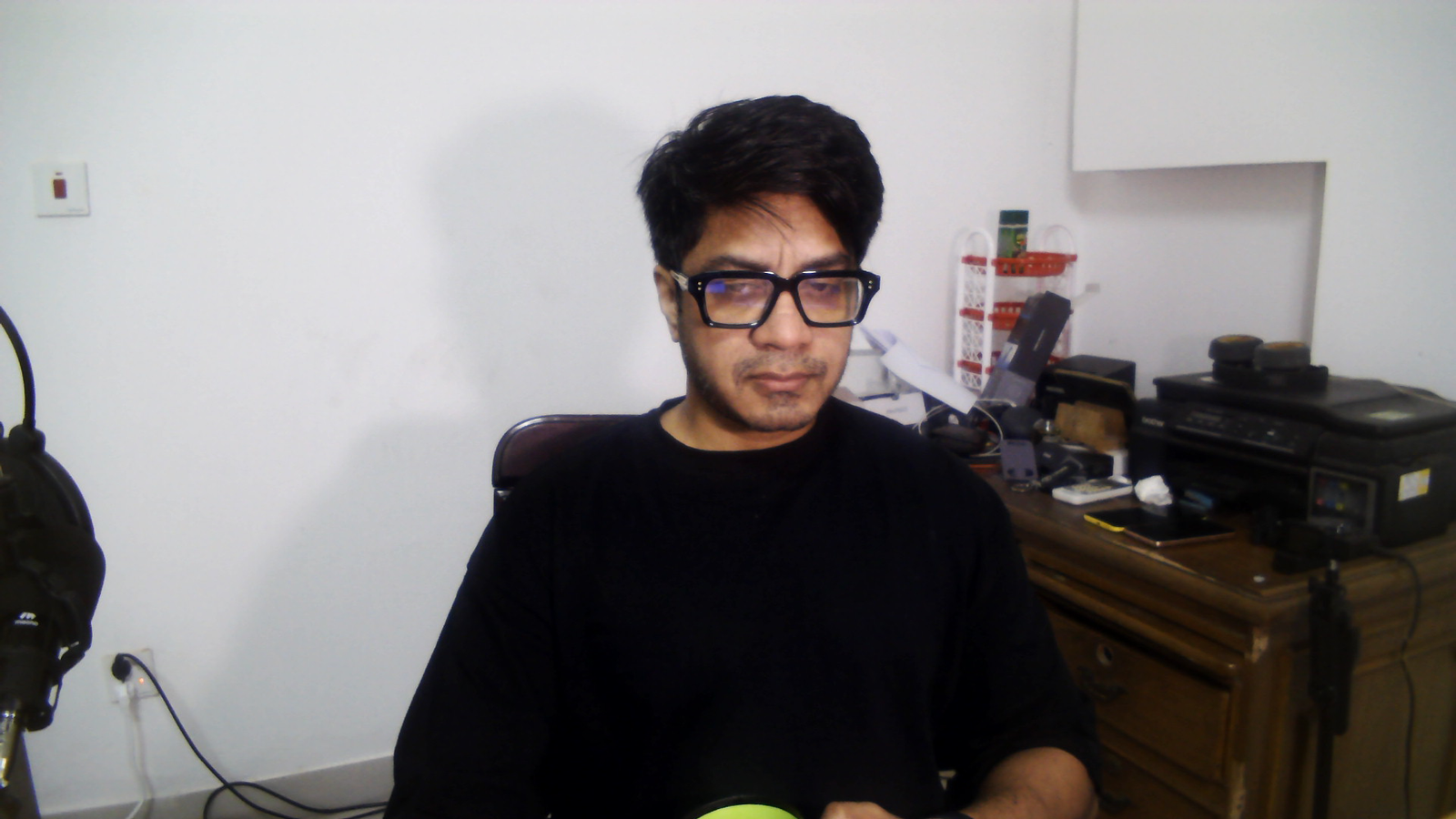
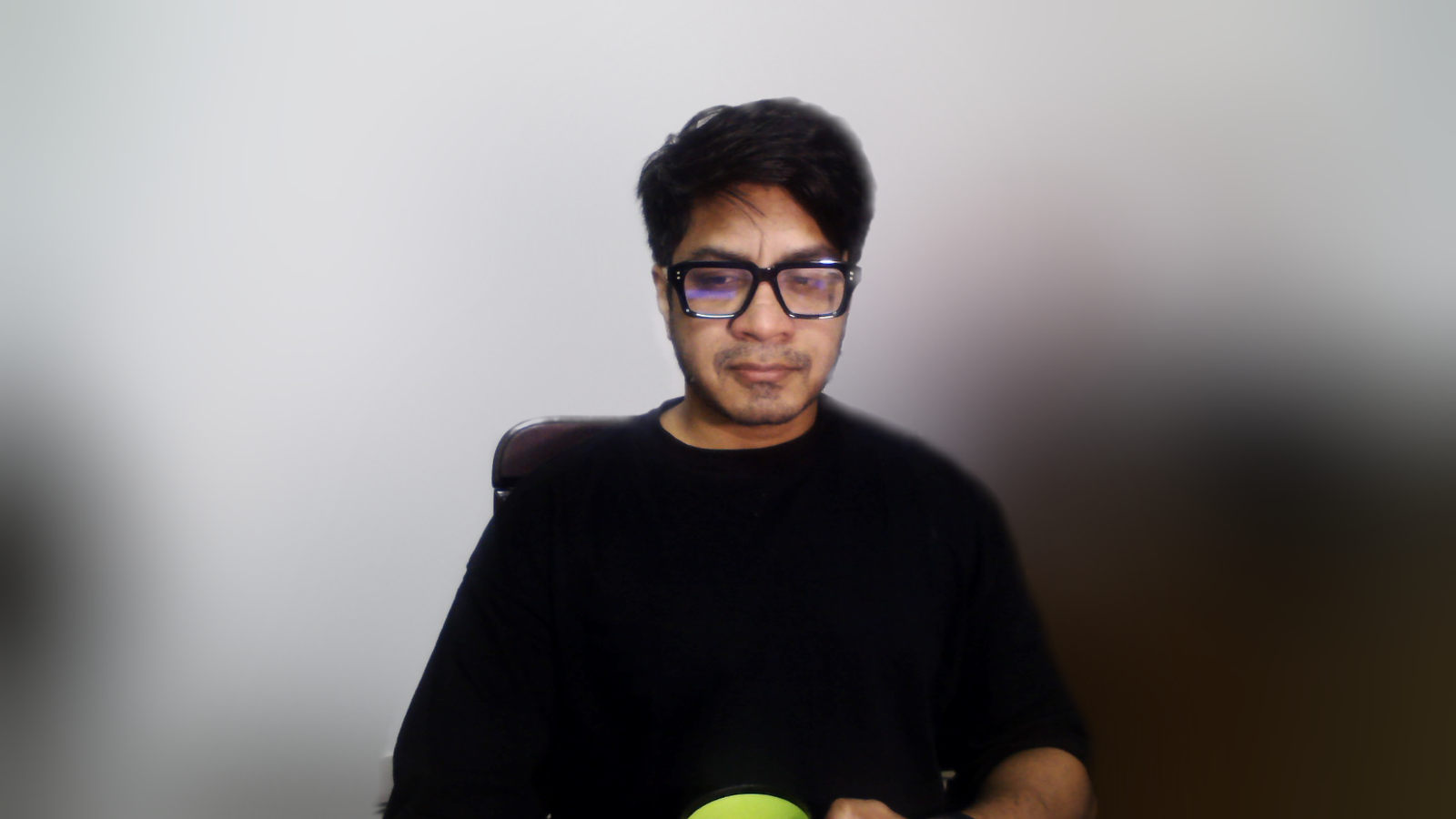
The same frame, filter off and then on, captured live in OBS.
What blur costs
Blur mode measured 1.7 ms on a 2017 low-end laptop (i7-7500U + GeForce 940MX, Windows 11)
Measured: docs/final-verification.md section 3.3Blur is not the expensive mode people expect. The blurred background it needs is computed at quarter resolution and is the same estimate the filter already uses to clean up your edge, so it comes almost for free.
Honest limits
Known limits
- Every shipped model is single-person or person-class. A second person is only kept if the model happens to segment them. The largest connected region is always kept, so you are never the one who disappears.
- A microphone in front of your face or a mug in your hand is background as far as the person-segmentation models are concerned. RVM handles held objects better because it mattes rather than classifies.
- Robust Video Matting is the best-looking model and the most expensive. On the 2017 test laptop it costs 71 to 96 ms a frame, so Auto does not pick it there. Choose it manually on that class of hardware and you get a high-quality matte that visibly lags.
- Every number here comes from one machine, a 2017 dual-core laptop with a Maxwell GPU. Mid-range and high-end performance has not been verified by anyone.
Real-time AI background removal for OBS. Free, open source, and it never leaves your PC.
Windows installer, Linux .deb and .tar.gz, macOS bundle. Free, GPL-2.0-or-later. ProMatte is GPL-2.0-or-later and stays that way. Sponsorship never buys code, features-behind-a-paywall, or a licence. It buys time, hardware and models.
Questions people actually ask
Will it slow OBS down?
Inference runs on its own thread and the render thread never waits for it. On the test laptop the filter cost 1.7 to 3.3 ms of render time while OBS held 30 fps. Source: docs/final-verification.md section 3.3
Do I need an NVIDIA card?
No. It runs on any D3D12-capable GPU through DirectML, including Intel and AMD, and falls back to the CPU. The machine every number here was measured on is a 2017 laptop with a GeForce 940MX.
Is it really free?
Yes. GPL-2.0-or-later, no account, no licence key, no paid tier. Sponsorship is optional and funds development time, hardware and models, never the code.
Why does Remove (transparent) look like it does nothing?
Because transparent makes the background see-through, and you only see that when there is something behind the camera in the scene. Put your game or your slides below the camera, or use Blur to confirm the AI is working.
Related
- OBS Background Removal: The Complete Guide
- OBS Virtual Background Without a Green Screen
- An obs-backgroundremoval Alternative, and When to Stay Put
ProMatte is free software under GPL-2.0-or-later, built by Hakeemify. Every measurement on this page names the machine it came from.